
There have been many articles written about color theory, color palettes, and color psychology (see resources). This article is a bit different — it focuses on a specific and practical area: working with colors when building dashboards and reports in Power BI. We won’t be discussing just colors in data visualizations, but the entire user experience (UX) tied to colors across a report, from the base layout and user interface all the way to the actual charts and visuals.
Colors in Power BI can be split into three core groups:
1. Structural colors — fonts and user interface (UI) colors
2. Semantic colors — colors that carry meaning (good vs. bad outcome)
3. Data colors — colors used in charts
❓ Quiz: In which group would you place the client’s primary brand color? 🙂
1. Structural colors
Structural colors are what Microsoft describes in its report themes documentation as the colors of the user interface — fonts, backgrounds, buttons, borders, and other UI elements. This is exactly where the client’s primary brand color naturally belongs, just like you would see it on the company’s website or in marketing materials. This consistency creates a sense of familiarity for users and therefore improves report adoption.
💡 Jakob’s Law
Users spend most of their time in tools and applications other than Power BI. They naturally prefer UI to be as similar as possible across tools.
But there’s a catch. Brand colors are often bold and shouldn’t dominate every corner of a report. As Microsoft puts it in its Fluent 2 design system: “Avoid overusing brand colors or using them on large surfaces as they can dilute a hierarchy and make an experience difficult to navigate.” A good example is the Facebook UI — their iconic blue appears only in the logo and on key action elements (such as primary buttons); the rest of the interface is neutral. The result? The color doesn’t overwhelm, yet you immediately recognize whose product you are using.

Building a color scale for the UI
So how do we create a visually balanced interface? The first step is to build a color scale with several shades of the primary color. Refactoring UI recommends 9 shades — which is definitely sufficient. Personally, I use Figma to build the scale, but any tool with an HSL color picker will do.
The primary (brand) color should sit roughly in the middle of the scale, or slightly off to one side depending on whether its base tone is light or dark.
ℹ️ Why HSL, not HEX?
Shades are best created in the HSL color model (Hue, Saturation, Lightness), not by directly editing HEX codes. In HSL, you simply keep the Hue and Saturation values constant and adjust the Lightness — this produces natural, visually consistent shades of the same color.
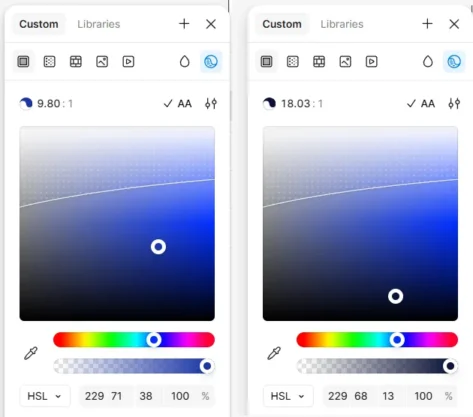
Instructions:
1. Place the brand color in the middle of the scale → label it as 500
2. Define the extremes → 900 (darkest) and 100 (lightest) by adjusting Lightness in the HSL color picker
ℹ️ Tip: Testing color shades in Figma
3. Fill in the intermediate points → 300 and 700 (roughly halfway between 500 and the extremes)
4. Add the remaining shades 200, 400, 600, 800 by feel — it’s not a mathematical exercise

Practical use of shades in a report:
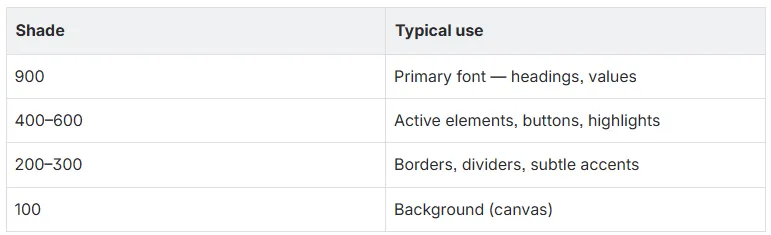
The final report no longer relies on a single bold brand color, but on an entire range of shades. It still fits the client’s brand while honoring sound UX principles.
Here’s an example of part of a mockup using colors from the blue color scale.
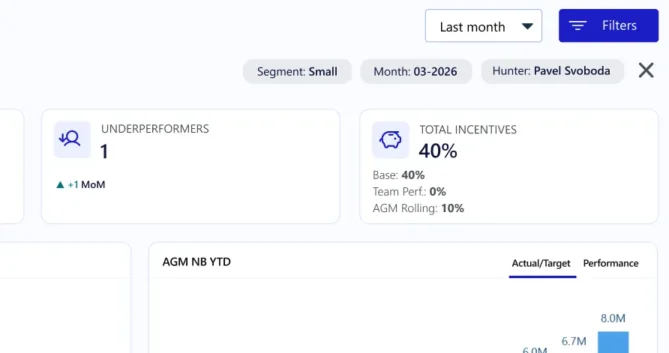
Unlike marketing flyers and banners, users look at reports regularly and over long periods of time. We glance at a billboard for seconds, but at a report potentially for hours each week — color choices therefore need to be far more restrained and considered.
Font color is one dimension of typography — alongside typeface, weight, and size — and like the others, it should carry part of the information. If we use the same font size and color throughout the entire report, the result is usually a flat, cluttered layout that is harder to read. Typography should therefore be part of the template (theme and blueprint) — so it stays consistent across pages and visuals and the developer doesn’t have to decide which font, size, and color to use for every individual element. In practice, this means first defining typical text roles (headings, subheadings, axis labels, values…) and assigning a typeface, weight, size, and color to each of them.
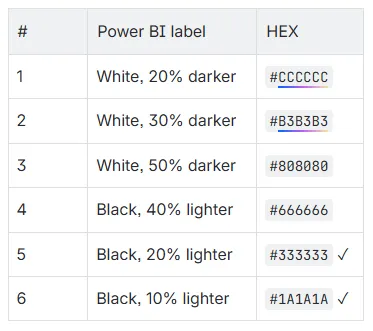
Although logically the darkest shade of the primary color (900) could serve as the base text color, in practice I prefer one of the dark grey shades available directly in the Power BI color picker, simply for ease of use. I recommend shades 5 or 6 from the overview below. Subheadings or axis labels can then use lighter shades (e.g. 3 or 4).

2. Semantic colors
Semantic colors work on the basis of universally shared associations — red signals a problem, yellow a warning, green a positive outcome. In reports, we typically see them on numbers, icons, or indicators flagging the positive or negative movement of a metric.
The key rule: semantic colors must have a clear and consistent meaning across the entire report. A user should never have to think about what a given color means — that decision should be made once by the developer/designer and then applied rigorously.
A few principles when choosing semantic colors:
Distinct from other colors. Semantic colors shouldn’t visually blend with the brand color or with data colors in charts. If the client’s brand color were red and you also used that same red as a “negative” indicator, the user wouldn’t be able to tell what that red is communicating. In such cases, at minimum pick a clearly distinct shade of the color.
Contrast and accessibility. Red and green is the most common combination, but also the most problematic for color blindness — red-green color blindness (deuteranopia) is the most widespread form of color vision deficiency. So always:
Check contrast with a tool like the Adobe Color Contrast Checker (WCAG AA/AAA standard)
Verify how the colors look for people with color vision deficiencies
Never communicate meaning by color alone — always pair it with text, an icon, or another visual signal
In our theme.json file we define semantic colors like this:

This setting is automatically picked up by KPI visuals and waterfall charts, where Power BI uses these values natively. For other visuals, you can reference these colors via DAX conditional formatting to keep the report consistent.
3. Data colors
Data colors have one main goal: to let the user quickly tell apart categories or data series in charts. They therefore need to be distinct enough from one another to avoid confusion.
Common mistake
One of the most common mistakes in Power BI is automatically using the primary brand color as the default color in every chart. For a simple report with a single metric this can work, but on a more complex dashboard you’ll hit the wall quickly.
The brand color’s primary role in a report is to build visual identity — it shows up in the logo, buttons, header. It shouldn’t automatically carry data meaning as well. If we use it in charts, buttons, cards, and highlights all at once, the user gets oversaturated with a single color and the dashboard loses its visual balance.
ℹ️ An alternative approach: IBCS and life without data colors
The International Business Communication Standards (IBCS) take a radically different philosophy: color is reserved exclusively for what matters — specifically, variances. Charts otherwise remain in black-and-white.
Instead of color, IBCS distinguishes scenarios using fill patterns. Color is then applied only to variances — green for a positive deviation, red for a negative one.

Pure IBCS has its limits though — when comparing multiple categories, you quickly run into the problem that they all collapse into the same grey and can no longer be told apart. IBCS is therefore more of a valuable source of inspiration than a universal solution: the fewer colors you use in your charts, the stronger the signal each of them carries.
So how do you actually pick data colors?
A reasonable question — couldn’t we just use the default Power BI palette, or borrow one of the well-established sets like IBM Carbon or Microsoft Fluent 2? They’re designed by experts and tested for accessibility. By the way, you can find these and other palettes at: Color Library for Data Visualization | Nudge BI.


Unfortunately, it isn’t that simple. Pre-built palettes are designed to be universal and may not harmonize with a specific client’s brand color. The goal is to find a set of data colors that:
- is colorful enough to clearly differentiate categories
- harmonizes with the brand color used in the UI
- meets contrast requirements against the background (WCAG)
- doesn’t clash with the semantic colors (red/green)
Claude AI Workflow
This is exactly the kind of task where generative AI shines — personally I use Claude AI for this. Just describe the requirements and let it propose a palette, which you can then refine.
🤖 Example prompt:
Can you help me with data colors for the visuals? This is the main brand color: #2e1ec7. I don’t want to use it in the visuals at all, I just use it in the UI in a few buttons and logo etc. I would like you to suggest 8 colors that would fit nicely with this color on the color wheel. Keep in mind that the colors should have enough contrast against the white background for accessibility. Show me the colors in an image or HTML on the color wheel, how they are spread on it. Show the brand color there as well for illustration. Also, suggest an order that I should add to the theme.json file, so they are spread in a logical way — that when there are just 2 colors, they will be very far apart etc. You can get inspiration from the color distribution of Fluent 2’s data viz palette.

The output is a set of data colors tailored to a specific brand. The first attempt is rarely perfect — it usually takes a few iterations: fine-tuning colors that are too similar, reordering them so the most common combinations (two colors, three colors) always form a contrasting pair, or removing shades that collide with the semantic colors. But it is definitely a time-saver!
Summary
Colors in Power BI reports aren’t just an aesthetic matter — they’re part of communicating with the user. Poorly chosen colors increase cognitive load, slow down comprehension of the data, and erode trust in the report. Well-chosen colors, on the other hand, work quietly in the background: the user barely notices them, yet instinctively knows where to look and what each color signals.
- Structural colors anchor the report in the client’s brand. The key is not to rely on a single bold brand color, but on a whole scale of shades that is visually balanced and doesn’t overwhelm the user.
- Semantic colors are reserved exclusively for signaling certain meaning, such as positive and negative outcomes. They must be consistent, contrasting, and accessible — and they should never communicate meaning by color alone, without supporting text or an icon.
- Data colors serve to differentiate categories in charts. They shouldn’t blend with the brand color or the semantic colors, and they should harmonize with the overall visual style of the report. Generative AI is a highly effective helper when putting them together.
Working with colors correctly takes a bit more preparation at the start of a project — building the color scale, defining the semantics, choosing the data palette. That time pays back many times over in the form of a more consistent report and a better user experience.
🔗 Resources
Nudge BI: Color Library for Data Visualization – Different color palettes for data visualization
Canva: Color wheel – Color theory and an interactive color wheel
Refactoring UI: Building Your Color Palette – A detailed guide to building color scales for UI

We’ll look at their structure, readability, and visual design and suggest how to make the data easier for users to navigate.